Build a Code Editor Like VS Code, Part 2: The Editor Pane
AdminJune 24, 20265 min read
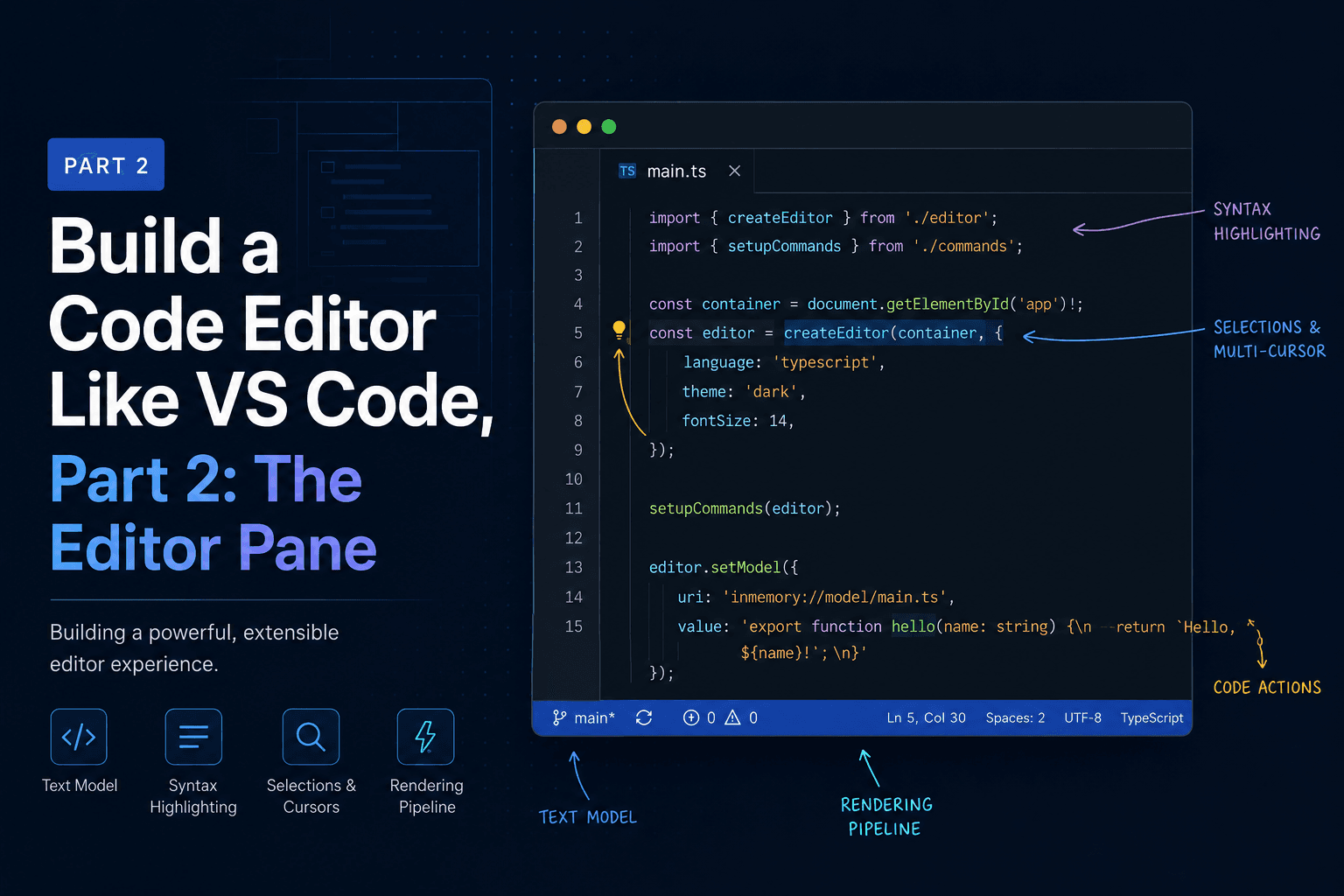
In Part 1 we picked the stack and built a three-pane shell with placeholders where the real pieces will go. The editor pane currently shows the text "Open a file to start editing." In this part we replace that placeholder with Monaco, the editor that powers VS Code, and end with a real, editable text buffer on screen.
This is also where we meet the first piece of friction in the series. Monaco is a large library that expects to load itself in a specific way, and Electron has opinions about that. Most of this part is getting those two to agree.
There are two packages in play. monaco-editor is the editor itself. The
@monaco-editor/react package is a thin React wrapper that handles mounting,
unmounting, and resizing for us, which saves a lot of lifecycle boilerplate.
npm install monaco-editor @monaco-editor/reactYou could mount Monaco by hand with monaco.editor.create(domNode, options) inside
a useEffect, but you'd then own the teardown, the resize observer, and the React
strict-mode double-mount edge cases. The wrapper has already solved those, so we'll
use it and spend our attention on the parts that are specific to our app.
By default, @monaco-editor/react does not bundle Monaco at all. It loads it at
runtime from a CDN. In a normal website that's a reasonable default. In an Electron
app it's the wrong one, for two reasons.
The first is that our app should work offline. A code editor that needs an internet
connection to show an editor is broken on a plane. The second is that Electron's
content security policy and file:// origin make loading and running remote scripts
awkward and, if you care about security, something you actively want to prevent.
So we tell the wrapper to use the copy of Monaco we already installed from npm
instead of fetching one. That's what loader.config({ monaco }) does.
The second half of the problem is web workers. Monaco runs some of its work on
background threads, and it asks the environment how to create those workers through
a global named MonacoEnvironment. If we don't answer, Monaco logs errors and falls
back to running everything on the main thread. Since we're starting without syntax
highlighting or language services, we only need Monaco's base editor worker, not the
JSON, CSS, HTML, or TypeScript ones. That keeps the setup small.
Vite makes the worker easy to bundle with its ?worker import suffix, which turns a
module into a worker constructor.
Create a single setup file that does both jobs.
src/renderer/src/editor/setupMonaco.ts:
import * as monaco from 'monaco-editor'
import editorWorker from 'monaco-editor/esm/vs/editor/editor.worker?worker'
import { loader } from '@monaco-editor/react'

// Tell Monaco how to spin up its background worker. We only need the base
// editor worker for now; language-specific workers come later with syntax
// highlighting.
self.MonacoEnvironment = {
  getWorker() {
    return new editorWorker()
  }
}

// Use the npm copy of Monaco we bundled, instead of fetching one from a CDN.
loader.config({ monaco })
Import this once, early, so it runs before any editor mounts. The renderer entry point is the right place.
src/renderer/src/main.tsx:
import './editor/setupMonaco'
import React from 'react'
import ReactDOM from 'react-dom/client'
import App from './App'

ReactDOM.createRoot(document.getElementById('root')!).render(
  <React.StrictMode>
    <App />
  </React.StrictMode>
)Now we build the component that renders the editor and holds the text. For this part the content is hardcoded, since we don't have a file explorer feeding it yet. That arrives in Part 3, and when it does, this component barely changes.
src/renderer/src/editor/EditorPane.tsx:
import { useState } from 'react'
import Editor from '@monaco-editor/react'

const SAMPLE = `// Welcome to our editor.
// This buffer is real: type into it, select with the mouse,
// multi-cursor with alt-click, find with Ctrl/Cmd+F.

function greet(name) {
  return "hello, " + name
}
`

export default function EditorPane() {
  const [value, setValue] = useState(SAMPLE)

  return (
    <Editor
      height="100%"
      theme="vs-dark"
      defaultLanguage="plaintext"
      value={value}
      onChange={(next) => setValue(next ?? '')}
      options={{
        fontSize: 13,
        minimap: { enabled: true },
        scrollBeyondLastLine: false,
        automaticLayout: true
      }}
    />
  )
}
A few of those props are doing real work and are worth calling out.
value and onChange make this a controlled component, so the text lives in React
state rather than only inside Monaco. We don't strictly need that yet, but in Part 5
we'll track unsaved changes and write files to disk, and having the buffer in state
is what makes that straightforward.
defaultLanguage="plaintext" is deliberate. We promised to start without syntax
highlighting, and plaintext means Monaco does no tokenizing or coloring. Editing,
selection, multi-cursor, and find-and-replace all still work, because those are
editor features, not language features. We'll switch this to a real language in a
later part.
automaticLayout: true tells Monaco to watch its container for size changes and
relayout itself. Without it, the editor would render at its initial size and then
look wrong the moment the window resizes or the terminal pane changes height. This
relies on the bounded, scrollable container we set up with min-height: 0 back in
Part 1.
scrollBeyondLastLine: false is a small taste preference. It stops the editor from
letting you scroll a whole screen past the end of the file.
Open App.tsx from Part 1 and swap the editor placeholder for the new component.
Everything else in the layout stays exactly as it was.
src/renderer/src/App.tsx:
import './App.css'
import EditorPane from './editor/EditorPane'

export default function App() {
  return (
    <div className="app">
      <aside className="sidebar">
        <header className="pane-title">Explorer</header>
        <div className="sidebar-body">
          {/* Part 3: the file tree goes here */}
          <p className="placeholder">No folder opened</p>
        </div>
      </aside>

      <main className="editor">
        <header className="pane-title">Editor</header>
        <div className="editor-body">
          <EditorPane />
        </div>
      </main>

      <section className="terminal">
        <header className="pane-title">Terminal</header>
        <div className="terminal-body">
          {/* Part 4: xterm.js mounts here */}
          <p className="placeholder">$ shell coming in part 4</p>
        </div>
      </section>
    </div>
  )
}
Run npm run dev. The editor area now holds a working code editor with a minimap, a
blinking cursor, and the sample text. Type into it, hold Alt and click in a few
places to get multiple cursors, and press Ctrl+F or Cmd+F to open the find widget.
All of that came for free with Monaco, which is the whole reason we chose it.
The editor pane is now a real editor. We worked through the one genuinely tricky part of using Monaco, which is stopping it from loading itself off a CDN and instead bundling it with the app, workers included, so the whole thing runs offline and inside Electron's security model. We also chose to hold the buffer in React state now, so saving and dirty-state tracking are easy to add later.
What's missing is obvious: the text is hardcoded. There's no way to open a file, because there's nothing listing files to open.
In Part 3 we build the file explorer. That's where the IPC bridge from Part 1 stops being theory, because the renderer will ask the main process to read a directory off disk, and clicking a file will load its contents into the editor we just built.