Build a Code Editor Like VS Code, Part 5: Saving, Dirty State, and Tabs
AdminJune 26, 20267 min read
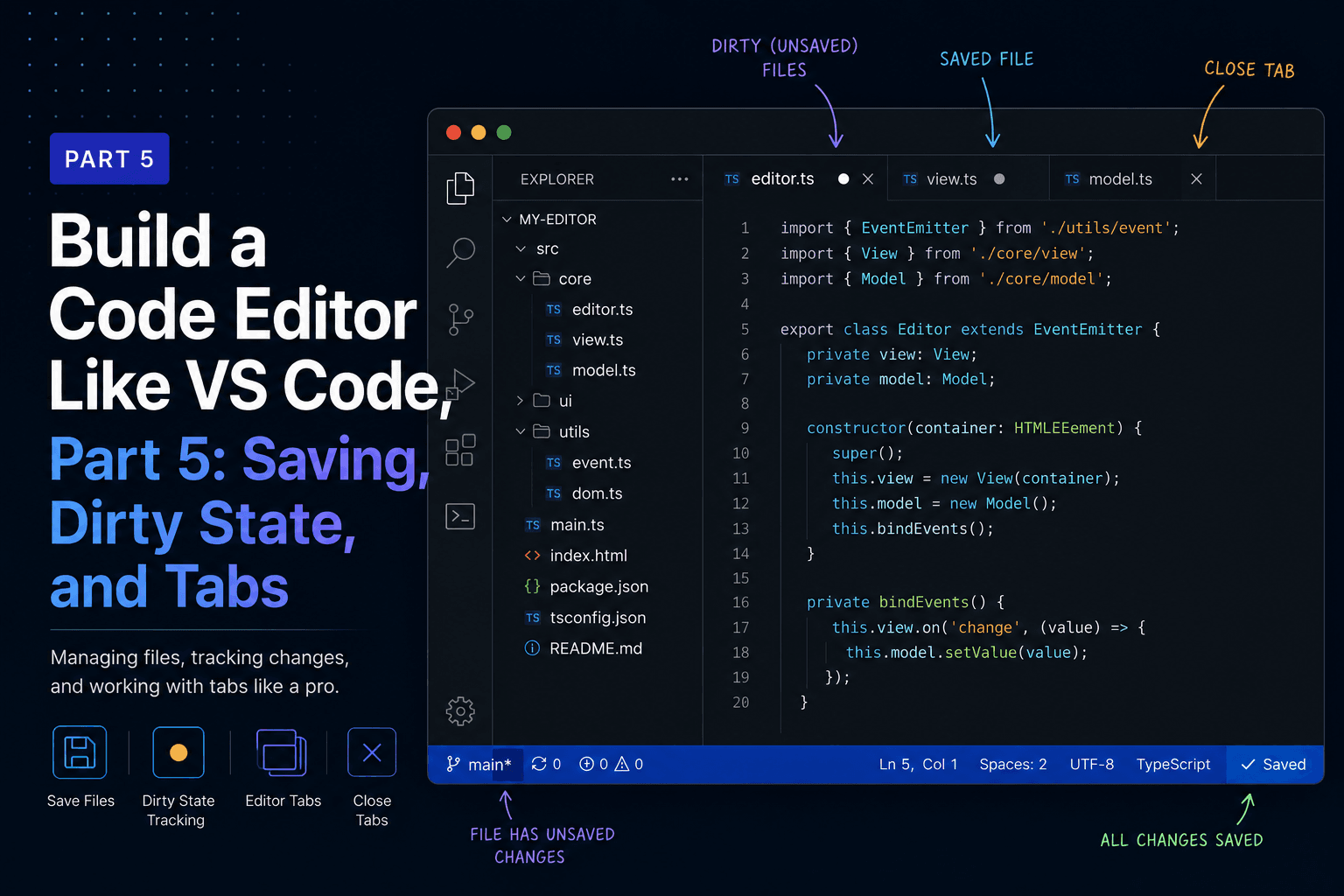
After Part 4 we have all three panes working, but the app has a glaring hole: you can edit a file and there's no way to save it. Worse, you can only have one file open at a time, so opening a second file silently replaces the first. This part fixes both.
We add writing files back to disk, a dirty indicator that shows which files have unsaved changes, and a tab bar so several files can be open at once. None of it needs new infrastructure. Saving is one more IPC handler in the shape we built in Part 3, and everything else is React state. The groundwork from earlier parts, especially the per-file Monaco models, is what makes this clean.
Up to now App held a single open file. To support tabs, it needs to hold a list of
open files and a pointer to which one is showing. Each open file also needs to know
two versions of its text: what's currently in the buffer, and what's on disk. The gap
between those two is what "unsaved changes" means.
Update the OpenFile interface at the top of src/renderer/src/App.tsx: add the
name and savedContent properties, and export it so the tab bar can import it later.
export interface OpenFile {
  path: string
  name: string
  content: string       // what's in the editor right now
  savedContent: string  // what's on disk
}
A file is dirty when content !== savedContent. That single comparison drives the
whole dirty indicator, and it resets itself the moment we save, because saving copies
content into savedContent. There's no separate "dirty" flag to keep in sync, which
means there's no way for it to get out of sync.
Writing a file is privileged, so it follows the exact pattern from Part 3. Add a handler in the main process:
import { writeFile } from 'fs/promises'

ipcMain.handle('fs:writeFile', async (_event, filePath: string, content: string) => {
  await writeFile(filePath, content, 'utf-8')
})
Expose it through preload, alongside the other file functions:
writeFile: (path: string, content: string): Promise<void> =>
  ipcRenderer.invoke('fs:writeFile', path, content),
And add it to the window.api type in src/preload/index.d.ts:
writeFile: (path: string, content: string) => Promise<void>That's the entire backend for saving. Everything else in this part is UI.
App is where single-file editing becomes multi-file. We'll change it one piece at a
time, starting from the version Part 4 left us with: it held a single file in state
and replaced it on every open. By the end, App keeps a list of open files and a
pointer to the active one. If you'd rather read the result whole, the complete file is
at the end of this section.
First, the imports. We need two more hooks and the tab bar component we're about to write:
import { useState, useEffect, useCallback } from 'react'
import './App.css'
import EditorPane from './editor/EditorPane'
import FileExplorer from './explorer/FileExplorer'
import TerminalPane from './terminal/TerminalPane'
import TabBar from './editor/TabBar'The old state was a single nullable file:
const [file, setFile] = useState<OpenFile | null>(null)Replace it with a list and a pointer to whichever path is active. The active file is then just a lookup, so there's no third piece of state to keep in sync:
const [files, setFiles] = useState<OpenFile[]>([])
const [activePath, setActivePath] = useState<string | null>(null)

const activeFile = files.find((f) => f.path === activePath) ?? null
Each tab needs a label. Add a small helper near the top of the file, outside the component, to pull a filename off a path:
function basename(p: string): string {
  return p.split(/[\\/]/).pop() ?? p
}
That's what fills the name field we just added to OpenFile.
In Part 4, openFile overwrote whatever was open:
async function openFile(path: string): Promise<void> {
  const content = await window.api.readFile(path)
  setFile({ path, content })
}
The new version checks whether the file is already open. If it is, it just focuses
that tab; otherwise it reads the file and appends a new entry, seeding both content
and savedContent from disk so the file starts out clean:
async function openFile(path: string): Promise<void> {
  // Already open? Just focus its tab.
  if (files.some((f) => f.path === path)) {
    setActivePath(path)
    return
  }
  const content = await window.api.readFile(path)
  setFiles((prev) => [
    ...prev,
    { path, name: basename(path), content, savedContent: content }
  ])
  setActivePath(path)
}
That one change, append instead of replace, is what turns single-file editing into multi-file editing.
Before, edits flowed straight into the single file through the editor's onChange.
Now an edit has to update the right entry in the list. Add a function that does it by
path:
function updateContent(path: string, content: string): void {
  setFiles((prev) => prev.map((f) => (f.path === path ? { ...f, content } : f)))
}
This only touches content, never savedContent, which is exactly why a dirty file
reads as dirty: the two values have drifted apart.
saveFile writes the buffer to disk through the IPC handler we added above, then
copies content into savedContent so the file reads as clean again:
const saveFile = useCallback(
  async (path: string): Promise<void> => {
    const file = files.find((f) => f.path === path)
    if (!file) return
    await window.api.writeFile(path, file.content)
    setFiles((prev) =>
      prev.map((f) => (f.path === path ? { ...f, savedContent: f.content } : f))
    )
  },
  [files]
)
It's wrapped in useCallback because the keyboard effect below lists it as a
dependency, and we don't want that effect tearing down and rebinding on every render.
Now wire up Cmd/Ctrl+S with a global listener:
// Cmd/Ctrl+S saves the active file.
useEffect(() => {
  function onKey(e: KeyboardEvent): void {
    if ((e.metaKey || e.ctrlKey) && e.key === 's') {
      e.preventDefault()
      if (activePath) saveFile(activePath)
    }
  }
  window.addEventListener('keydown', onKey)
  return () => window.removeEventListener('keydown', onKey)
}, [activePath, saveFile])
A listener on window saves the active file no matter where focus is, including when
you're in the terminal or the file tree, which matches what people expect from Cmd+S.
The preventDefault keeps the browser's own save dialog from appearing.
Closing computes the remaining list first, then, only if you closed the tab that was active, moves focus to the last file left open:
function closeTab(path: string): void {
  const remaining = files.filter((f) => f.path !== path)
  setFiles(remaining)
  if (path === activePath) {
    setActivePath(remaining.length ? remaining[remaining.length - 1].path : null)
  }
}
Computing remaining outside the state updater keeps the updater pure, which matters
because React may run it more than once.
Two changes in the JSX. Drop the editor's old Editor title header and put the
TabBar in its place, and route the editor's onChange through updateContent for
the active path:
<main className="editor">
  <TabBar
    files={files}
    activePath={activePath}
    onSelect={setActivePath}
    onClose={closeTab}
  />
  <div className="editor-body">
    <EditorPane
      file={activeFile}
      onChange={(content) => activePath && updateContent(activePath, content)}
    />
  </div>
</main>
EditorPane itself doesn't change, which we'll come back to in a moment.
Put together, here's the whole thing.
src/renderer/src/App.tsx:
import { useState, useEffect, useCallback } from 'react'
import './App.css'
import EditorPane from './editor/EditorPane'
import FileExplorer from './explorer/FileExplorer'
import TerminalPane from './terminal/TerminalPane'
import TabBar from './editor/TabBar'

export interface OpenFile {
  path: string
  name: string
  content: string
  savedContent: string
}

function basename(p: string): string {
  return p.split(/[\\/]/).pop() ?? p
}

export default function App() {
  const [files, setFiles] = useState<OpenFile[]>([])
  const [activePath, setActivePath] = useState<string | null>(null)

  const activeFile = files.find((f) => f.path === activePath) ?? null

  async function openFile(path: string): Promise<void> {
    // Already open? Just focus its tab.
    if (files.some((f) => f.path === path)) {
      setActivePath(path)
      return
    }
    const content = await window.api.readFile(path)
    setFiles((prev) => [
      ...prev,
      { path, name: basename(path), content, savedContent: content }
    ])
    setActivePath(path)
  }

  function updateContent(path: string, content: string): void {
    setFiles((prev) => prev.map((f) => (f.path === path ? { ...f, content } : f)))
  }

  const saveFile = useCallback(
    async (path: string): Promise<void> => {
      const file = files.find((f) => f.path === path)
      if (!file) return
      await window.api.writeFile(path, file.content)
      setFiles((prev) =>
        prev.map((f) => (f.path === path ? { ...f, savedContent: f.content } : f))
      )
    },
    [files]
  )

  function closeTab(path: string): void {
    const remaining = files.filter((f) => f.path !== path)
    setFiles(remaining)
    if (path === activePath) {
      setActivePath(remaining.length ? remaining[remaining.length - 1].path : null)
    }
  }

  // Cmd/Ctrl+S saves the active file.
  useEffect(() => {
    function onKey(e: KeyboardEvent): void {
      if ((e.metaKey || e.ctrlKey) && e.key === 's') {
        e.preventDefault()
        if (activePath) saveFile(activePath)
      }
    }
    window.addEventListener('keydown', onKey)
    return () => window.removeEventListener('keydown', onKey)
  }, [activePath, saveFile])

  return (
    <div className="app">
      <aside className="sidebar">
        <header className="pane-title">Explorer</header>
        <div className="sidebar-body">
          <FileExplorer onOpenFile={openFile} />
        </div>
      </aside>

      <main className="editor">
        <TabBar
          files={files}
          activePath={activePath}
          onSelect={setActivePath}
          onClose={closeTab}
        />
        <div className="editor-body">
          <EditorPane
            file={activeFile}
            onChange={(content) => activePath && updateContent(activePath, content)}
          />
        </div>
      </main>

      <section className="terminal">
        <header className="pane-title">Terminal</header>
        <div className="terminal-body">
          <TerminalPane />
        </div>
      </section>
    </div>
  )
}
The tab bar renders one tab per open file, highlights the active one, and shows the dirty state. The nice detail, borrowed straight from VS Code, is that the close affordance doubles as the dirty indicator: an unsaved file shows a dot, and hovering turns it into a close button.
src/renderer/src/editor/TabBar.tsx:
import type { OpenFile } from '../App'

interface Props {
  files: OpenFile[]
  activePath: string | null
  onSelect: (path: string) => void
  onClose: (path: string) => void
}

export default function TabBar({
  files,
  activePath,
  onSelect,
  onClose
}: Props) {
  return (
    <div className="tab-bar">
      {files.map((file) => {
        const dirty = file.content !== file.savedContent
        const active = file.path === activePath
        return (
          <div
            key={file.path}
            className={'tab' + (active ? ' tab-active' : '') + (dirty ? ' tab-dirty' : '')}
            onClick={() => onSelect(file.path)}
            title={file.path}
          >
            <span className="tab-name">{file.name}</span>
            <button
              className="tab-close"
              onClick={(e) => {
                e.stopPropagation()
                onClose(file.path)
              }}
            >
              <span className="tab-dot" />
              <span className="tab-x">×</span>
            </button>
          </div>
        )
      })}
    </div>
  )
}
The stopPropagation on the close button matters: without it, clicking the close
button would also fire the tab's own onClick and select the tab you're trying to
close. The button always renders both a dot and an ×, and CSS decides which one shows
based on the tab-dirty class and hover state.
Styles for the tab bar in App.css:
.tab-bar {
  display: flex;
  background: var(--bg-elevated);
  border-bottom: 1px solid var(--border);
  overflow-x: auto;
}

.tab {
  display: flex;
  align-items: center;
  gap: 6px;
  padding: 6px 10px;
  font-size: 12px;
  color: var(--text-dim);
  background: var(--bg-elevated);
  border-right: 1px solid var(--border);
  cursor: pointer;
  white-space: nowrap;
}
.tab:hover { color: var(--text); }
.tab-active { color: var(--text); background: var(--bg); }

.tab-close {
  display: flex;
  align-items: center;
  justify-content: center;
  width: 16px;
  height: 16px;
  padding: 0;
  border: none;
  background: none;
  color: inherit;
  cursor: pointer;
  border-radius: 3px;
}
.tab-close:hover { background: #ffffff22; }

.tab-dot { width: 8px; height: 8px; border-radius: 50%; background: currentColor; }
.tab-x { display: none; font-size: 14px; line-height: 1; }

/* A clean file shows the × directly. */
.tab:not(.tab-dirty) .tab-dot { display: none; }
.tab:not(.tab-dirty) .tab-x { display: inline; }

/* A dirty file shows the dot, until you hover the close button. */
.tab-dirty .tab-close:hover .tab-dot { display: none; }
.tab-dirty .tab-close:hover .tab-x { display: inline; }EditorPane from Part 3 already does everything we need, and that's not luck. Back
then we gave it path={file.path}, which makes the Monaco wrapper keep a separate
model per file. Now that we switch the active file by changing which file we pass,
the wrapper swaps to that file's model automatically, and each file keeps its own
undo history and cursor position. Switch from one tab to another and back, and your
cursor is exactly where you left it. We get tab persistence for free because we set
it up two parts ago.
The only wiring is in App: onChange now routes edits to the active file through
updateContent instead of a single piece of state.
Run npm run dev. Open a folder, then open a few files from the tree. Each one gets
a tab. Type into a file and a dot appears on its tab, telling you it's unsaved. Press
Cmd+S or Ctrl+S and the dot disappears, because the buffer now matches disk. Hover a
tab's dot to turn it into an ×, and click to close. Switch between tabs and confirm
each file keeps its own edits, cursor, and undo stack.
This is the moment the project crosses from demo to tool. You can open a real project, edit several files, save them, and run commands against them in the terminal, all without leaving the app.
We added the last piece of core editing behavior. Saving was a single IPC handler in
the now-familiar pattern. Dirty state fell out of comparing the buffer to disk, with
no flag to maintain. Tabs were a list and an active pointer in App, and they rode
on the per-file Monaco models we set up in Part 3, so the editor itself didn't
change.
The app is now genuinely usable for editing, but it's plain. Every file is gray text on a dark background, there are no keyboard shortcuts beyond save, and nothing is configurable.
In Part 6 we make it feel finished. We add syntax highlighting at last, by giving Monaco the language for each file based on its extension, then layer on a few editor settings and the keyboard shortcuts that make daily use comfortable.